
Documentation
Rooms
Rooms defines the individual usable spaces inside a building such as classrooms, labs, offices, meeting rooms, archive rooms, and receptions. This page documents purpose, navigation, visible screens, fields, actions, valuesets, LOVs, screenshots, validations, and examples using the locked AkshaEDU header-only standard.
Purpose
Rooms is used to define actual spaces inside a campus and optionally inside a building, such as classrooms, laboratories, offices, meeting rooms, reception areas, archives, and similar usable room-level infrastructure.
This feature belongs to AkshaEDU Setup > Institution Setup and follows the standard Education header-only list and view pattern with a General tab and Summary panel.
Business Purpose
Use Rooms after Buildings so the institution can maintain room-level physical infrastructure for scheduling, academic operations, examinations, administrative allocation, and capacity planning.
A room may represent a standard classroom, a lab, an office, a meeting room, a reception point, or a specialized education space. The room record captures its institution, campus, optional building, room classification, floor reference, capacity, bookable flag, and status.
Rooms is one of the key infrastructure masters because later features such as timetable planning, exam room allocation, class sessions, and facility utilization may refer to these room definitions.
- Captures room-level infrastructure inside an institution and campus.
- Supports optional building-wise room grouping.
- Stores room type, floor, capacity, and bookable behavior.
- Acts as a reusable reference for timetable, assessment, and operational room allocation scenarios.
Screen Overview
Available screens
| Screen | Purpose | Notes |
|---|---|---|
| List Page | Displays all room records with search, export, selection, visible columns, pagination, and row actions. | Visible columns in the screenshot include Room Code, Room Name, Institution, Campus, Building, Room Type, Floor, and Capacity. |
| Create Page | Allows users to create a new room record. | Uses the standard Education ResponsiveContainer layout with Save, Close, and action menu support. |
| Edit Page | Allows users to update an existing room record. | Room Code is shown in edit mode and is expected to follow the standard code-field edit lock pattern. |
| Summary Panel | Shows a quick summary of the current room on the right side of the page. | Displays Room Code, Room Name, Institution, Campus, Building, Room Type, Floor, Capacity, Bookable, and Status. |
Screenshots
Rooms is documented with three visuals: the list page, the create page, and a filled example edit page.
The screenshots are displayed one below another so each screen remains readable and useful for field-level explanation.
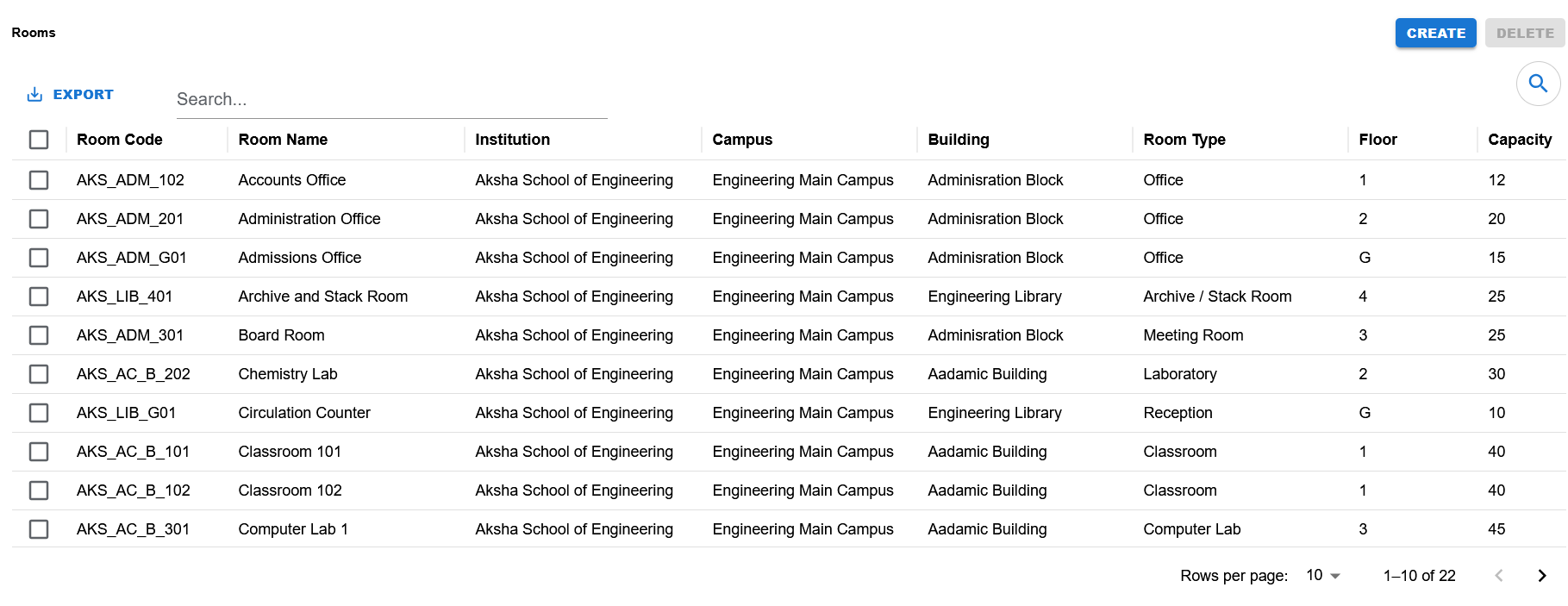
List page showing search, export, visible room columns, selection checkboxes, create and delete actions, and pagination.
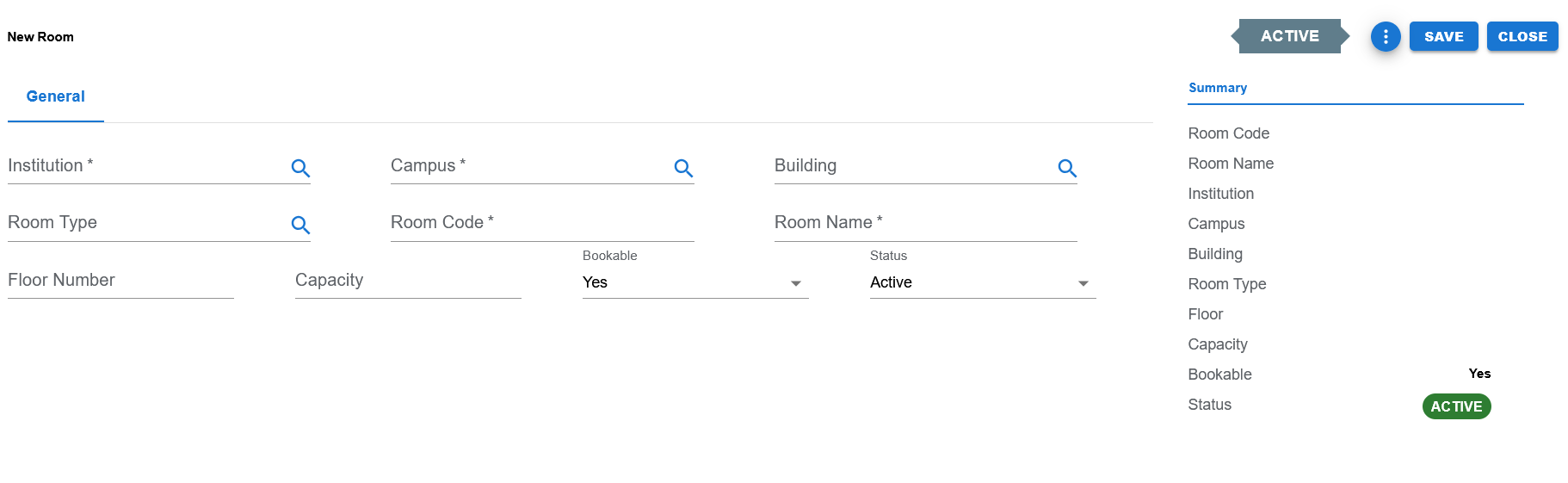
Blank create screen showing the General tab, required lookup fields, room attributes, default Bookable value, default status, and the Summary panel.
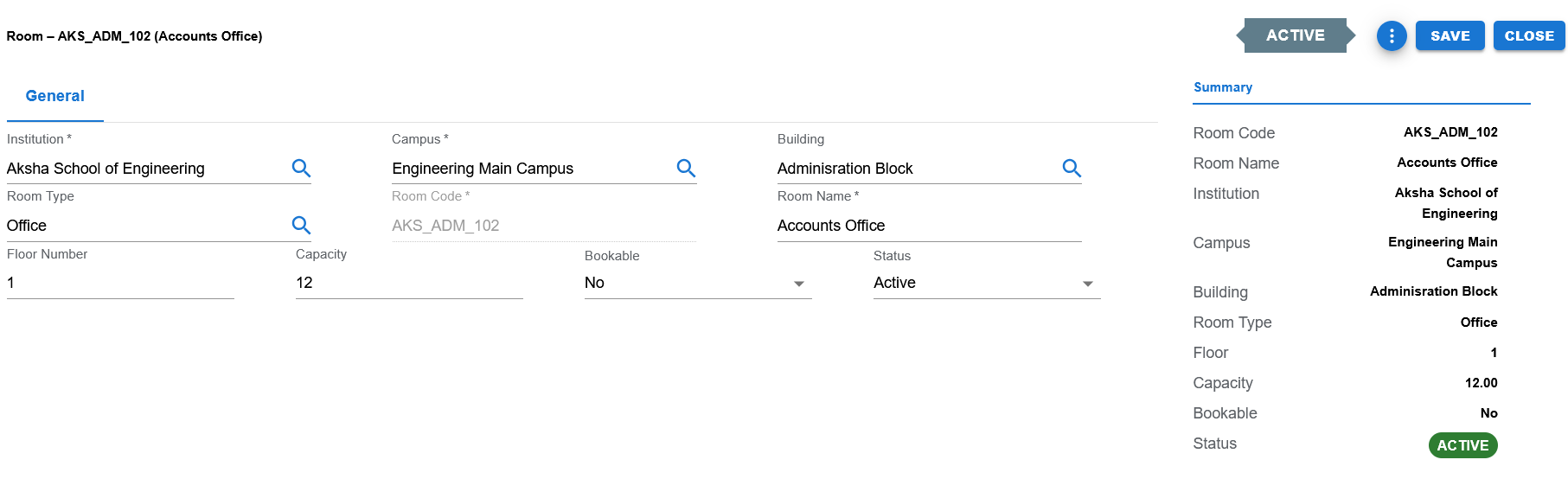
Filled example edit screen showing institution, campus, building, room type, room code, room name, floor number, capacity, bookable, status, and the Summary panel.
Functional Behavior
- Supports create, update, list, search, export, and list-level delete actions in the UI.
- Uses a single General tab and Summary panel.
- Institution and Campus are required reference fields in the visible UI.
- Building is available as an optional room-level infrastructure reference in the visible UI.
- Room Type is selected through a lookup-style field in the visible UI.
- Room Code is expected to be editable on create and disabled in edit mode, consistent with the established Education code-field pattern.
- Bookable is maintained as a controlled yes/no style field and is visible in both the form and Summary panel.
- Status is maintained as a controlled active or inactive field and displayed as a status badge in the Summary panel.
Room header fields
| UI Label | Technical Field | Type | Mandatory | Value Set / LOV | Default | Description | Validation / Rules | Example |
|---|---|---|---|---|---|---|---|---|
| Institution | institution_id | Autocomplete / LOV | Yes | Institution LOV | Blank | Institution under which the room is defined. | Required reference field. | Aksha School of Engineering |
| Campus | campus_id | Autocomplete / LOV | Yes | Campus LOV | Blank | Campus under which the room is defined. | Required reference field. | Engineering Main Campus |
| Building | building_id | Autocomplete / LOV | No | Building LOV | Blank | Optional building reference for the room. | Optional infrastructure reference. | Administration Block |
| Room Type | room_type_id / room_type | Autocomplete / LOV | No in visible UI | Room Type LOV / controlled reference | Blank | Classification of the room such as Office, Classroom, Laboratory, Reception, Meeting Room, or Archive / Stack Room. | Used to categorize the room for operational use. | Office |
| Room Code | room_code | Text | Yes | None | Blank | Unique identifying code for the room. | Required. Typically editable on create and disabled in edit mode. | AKS_ADM_102 |
| Room Name | room_name | Text | Yes | None | Blank | User-facing room name. | Required. | Accounts Office |
| Floor Number | floor_number | Text / Number | No | None | Blank | Floor reference or label for the room. | Optional. May store values like 1, 2, 3, 4, or G depending on institution usage. | 1 |
| Capacity | capacity | Number | No | None | Blank | Maximum intended room capacity. | Optional numeric value. | 12 |
| Bookable | is_bookable / bookable | Dropdown | Yes in visible UI | EDU_YES_NO style controlled field | Yes | Indicates whether the room can be booked or allocated for scheduling and operational use. | Controlled yes/no field. | No |
| Status | status | Dropdown | Yes | EDU_STATUS | ACTIVE | Current business status of the room. | Controlled active or inactive field. | ACTIVE |
Page and list actions
| Action | Purpose | Available On | Validation | Outcome |
|---|---|---|---|---|
| Create | Opens create mode for a new room record. | List page | None before opening. | User can enter a new room record. |
| Save | Saves the current room record and usually returns to the list page depending on the established Education save pattern. | Create / Edit page | Mandatory fields and controlled values must be valid. | Room is created or updated. |
| Close | Closes the page and returns to the list. | Create / Edit page | None. | User returns to the list page. |
| Export | Exports list data. | List page | Depends on current list data. | Export output is produced. |
| Delete | Delete action exists in the list UI. | List page | Business delete restrictions can be tightened later when downstream dependencies are finalized. | Selected row deletion flow is initiated. |
| Search | Filters visible list rows. | List page | None. | Matching rows remain visible. |
Controlled values
| Field | Value Set Code | Allowed Values / Examples | Notes |
|---|---|---|---|
| Status | EDU_STATUS | ACTIVE, INACTIVE | Visible in the form and Summary panel. |
| Bookable | EDU_YES_NO style field | Yes, No | Visible in the form and Summary panel as a controlled yes or no style field. |
Reference data and lookups
| Field | Source | Usage |
|---|---|---|
| Institution | Institutions | Used to identify the institution that owns the room. |
| Campus | Campuses | Used to identify the campus where the room exists. |
| Building | Buildings | Used when the room belongs to a defined building. |
| Room Type | Room Types / Room Type master | Used to classify the room operationally. |
Status values
| Status | Meaning | Notes |
|---|---|---|
| ACTIVE | Room is available for normal operational use. | Default visible status in the screenshots. |
| INACTIVE | Room exists but is not available for normal operational use. | Useful for retired, blocked, or temporarily unavailable rooms. |
- Institution is required.
- Campus is required.
- Room Code is required.
- Room Name is required.
- Bookable is maintained through a controlled yes/no style field.
- Status is maintained through EDU_STATUS.
- Building is optional in the visible UI.
- Capacity should be numeric when provided.
- Floor Number may be numeric or label-based depending on institution usage.
- Room Type should be selected from the room-type reference source when the source is configured.
- Room definitions should be kept consistent with campus and building hierarchy so downstream scheduling and room allocation stay reliable.
Operational reference
| Item | Value |
|---|---|
| Feature Structure | Header Only |
| Operational Scope | Defines schedulable or reference rooms under the institution, campus, and optional building hierarchy. |
| Key Dependencies | Institution and Campus are required; Building is optional in the current visible UI. |
| Used Before | Timetable, class sessions, exam room allocation, and room booking scenarios. |
| Public Documentation Note | This public page describes operational room setup and intentionally excludes internal technical details. |
Example Record
Sample room
| Field | Example Value |
|---|---|
| Room Code | AKS_ADM_102 |
| Room Name | Accounts Office |
| Institution | Aksha School of Engineering |
| Campus | Engineering Main Campus |
| Building | Administration Block |
| Room Type | Office |
| Floor | 1 |
| Capacity | 12 |
| Bookable | No |
| Status | ACTIVE |