
Documentation
Shifts
Shifts defines the operating time window for an institution or campus, such as day shift, morning shift, evening shift, weekend shift, or other schedule patterns. This page documents purpose, navigation, screens, fields, actions, valuesets, validations, screenshots, and examples using the locked AkshaEDU header-only standard.
Purpose
Shifts is used to define the working shift or operational timing window for an institution or a specific campus. Typical examples include day shift, morning shift, evening shift, weekend shift, and other institution-specific operating schedules.
This feature belongs to AkshaEDU Setup > Institution Setup and follows the standard Education header-only list and view pattern with a General tab and Summary panel.
Business Purpose
Use Shifts to define standard timing structures that can later be reused in campus operations, timetable planning, sections, batches, attendance setup, and session slot design.
A shift can be defined at institution level and optionally tied to a campus when the schedule varies by location.
- Defines reusable operating time windows for institutions and campuses.
- Supports multiple schedule patterns such as morning, day, evening, regular, and weekend shifts.
- Acts as a foundational timing master for downstream education operations.
Screen Overview
Available screens
| Screen | Purpose | Notes |
|---|---|---|
| List Page | Displays all shift records with search, export, status chips, pagination, and row actions. | Visible columns include Shift Code, Shift Name, Institution, Campus, Start Time, End Time, and Status. |
| Create / Edit Page | Allows users to create or update a single shift record. | Uses the standard Education ResponsiveContainer + ContextPanel + RecordNavigation layout with Save, Close, and Apply actions. |
| Summary Panel | Shows a quick summary of the current shift record on the right side of the page. | Displays Shift Code, Shift Name, Institution, Campus, Start Time, End Time, and Status. |
Screenshots
Shifts is documented using three screenshots so list behavior, create mode, and edit mode can be understood clearly.
The screenshots are displayed one below another so each visual remains readable and field-level details are visible.
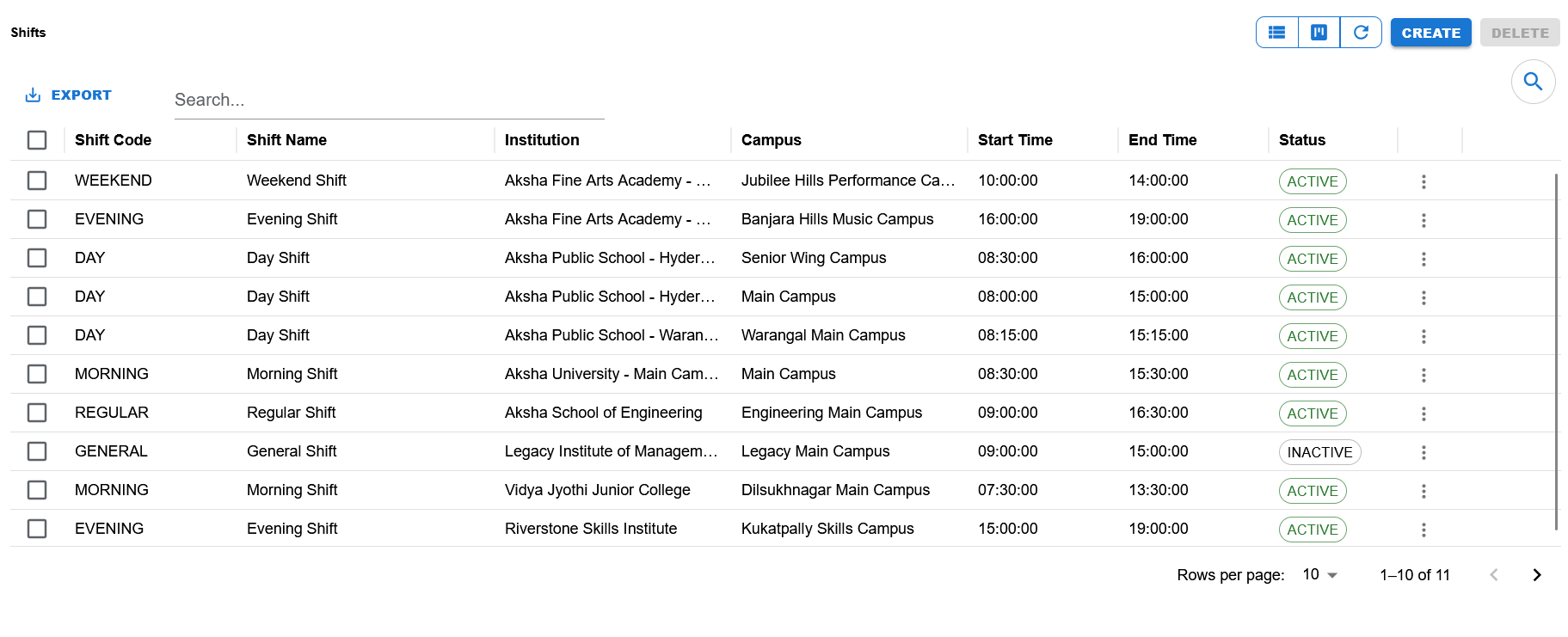
List page showing search, export, visible columns, status chips, pagination, and row action access.
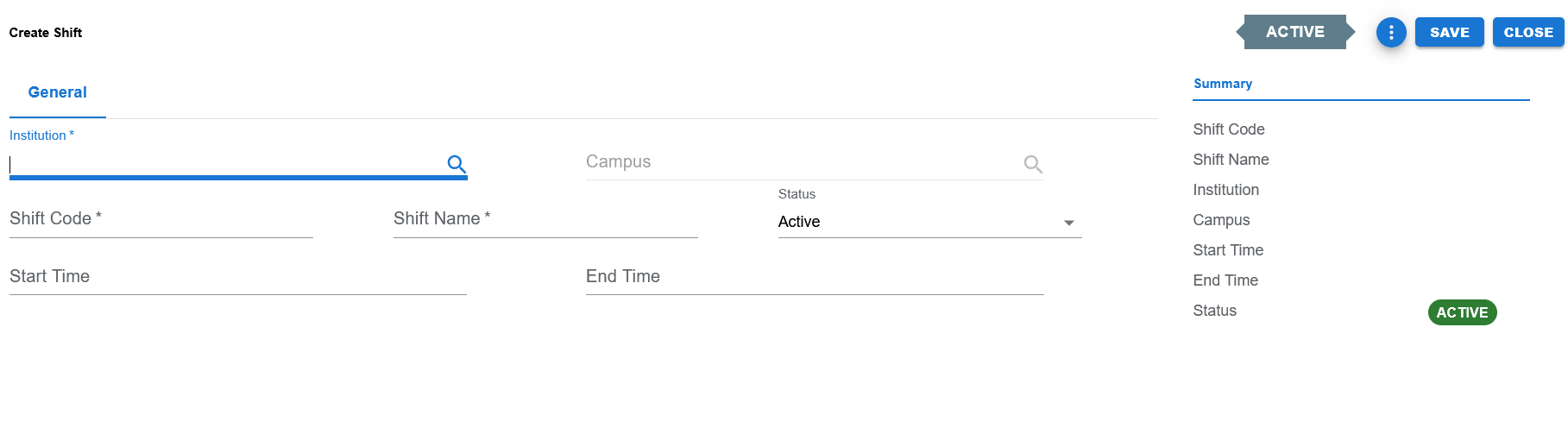
Blank entry screen showing Institution, Campus, Shift Code, Shift Name, Start Time, End Time, Status, and the Summary panel in create mode.
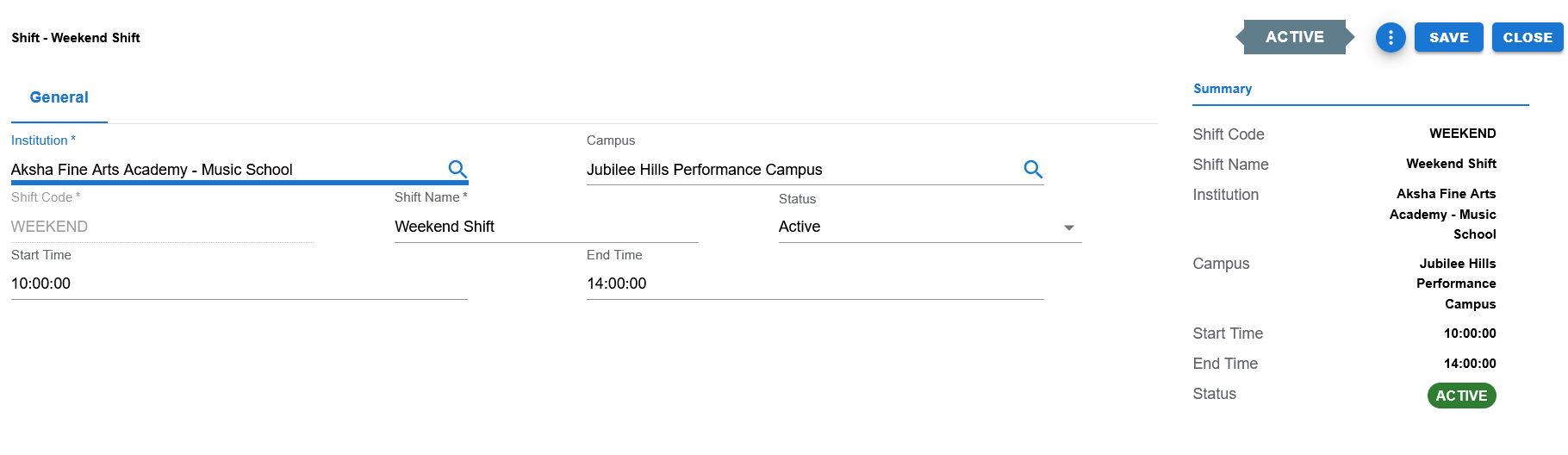
Filled example showing Weekend Shift with institution, campus, timings, status, and the Summary panel.
Functional Behavior
- Supports create, update, list, search, export, and list-level row actions in the UI.
- Save commits the record and returns to the list page.
- Close returns to the list page without continuing edits.
- Apply is expected through the standard ResponsiveContainer action menu pattern even if not visible in the screenshots.
- The page title changes by mode: Create Shift in create mode, and Shift - Shift Name in edit mode.
- Shift Code is expected to be editable on create and disabled in edit mode, aligned with the standard Education code-field pattern.
- Campus is dependent on Institution and can remain blank where the shift is meant to apply at institution level.
Shift header fields
| UI Label | Technical Field | Type | Mandatory | Value Set / LOV | Default | Description | Validation / Rules | Example |
|---|---|---|---|---|---|---|---|---|
| Institution | institution_id | Autocomplete / LOV | Yes | Institution LOV | Blank | Institution to which the shift belongs. | Required. Campus selection depends on the chosen institution. | Aksha Fine Arts Academy - Music School |
| Campus | campus_id | Autocomplete / LOV | No | Campus LOV | Blank | Optional campus under the selected institution. | Optional. Usually filtered by Institution. Can remain blank for institution-level shifts. | Jubilee Hills Performance Campus |
| Shift Code | shift_code | Text | Yes | None | Blank | Unique code for the shift. | Required. Expected to be create-only for editing, aligned with Education code-field pattern. | WEEKEND |
| Shift Name | shift_name | Text | Yes | None | Blank | Business name of the shift. | Required. | Weekend Shift |
| Start Time | start_time | Time | No | None | Blank | Starting time of the shift. | Optional, but typically used with End Time for operational planning. Displayed in HH:MM:SS format in the current UI. | 10:00:00 |
| End Time | end_time | Time | No | None | Blank | Ending time of the shift. | Optional, but typically used with Start Time for operational planning. Displayed in HH:MM:SS format in the current UI. | 14:00:00 |
| Status | status | Dropdown | Yes | EDU_STATUS | ACTIVE | Business status of the shift. | Controlled value-set field. Current UI supports ACTIVE and INACTIVE. | ACTIVE |
Page and list actions
| Action | Purpose | Available On | Validation | Outcome |
|---|---|---|---|---|
| Create | Opens create mode for a new shift record. | List page | None before opening. | User can enter a new shift. |
| Save | Saves the current shift and returns to the list page. | Create / Edit page | Mandatory header fields and validations must pass. | Shift is created or updated and success feedback is shown. |
| Apply | Saves the current shift and keeps the user on the page. | Create / Edit page action menu | Same validation as Save. | Shift is committed while remaining on the page. |
| Close | Closes the page and returns to the list. | Create / Edit page | None. | User returns to the list page. |
| Export | Exports list data. | List page | Depends on visible data. | Export output is produced. |
| Search | Filters visible list rows. | List page | None. | Matching shift rows remain visible. |
| Row Action Menu | Opens additional row-level actions. | List page | Depends on row selection or row action flow. | Allows record-level actions from the list page. |
Controlled values
| Field | Value Set Code | Allowed Values | Notes |
|---|---|---|---|
| Status | EDU_STATUS | ACTIVE, INACTIVE | Current UI shows both ACTIVE and INACTIVE in list and edit scenarios. |
Reference data and lookups
| Field | Source | Usage |
|---|---|---|
| Institution | Institutions | Used to associate the shift with an institution. |
| Campus | Campuses | Used to optionally associate the shift with a campus under the selected institution. |
Status values
| Status | Meaning | Notes |
|---|---|---|
| ACTIVE | Shift is available for operational use. | Visible as a green status chip in list and summary. |
| INACTIVE | Shift exists but is not active for normal operational use. | Shown in the list for inactive demo or historical records. |
- Institution is required.
- Shift Code is required.
- Shift Name is required.
- Campus is optional and typically filtered by the selected Institution.
- Status is required and must come from the controlled EDU_STATUS value set.
- Start Time and End Time are shown as time fields in the UI and should be stored using the platform's time format.
- Where both times are entered, End Time should logically not precede Start Time.
- Code fields follow the standard Education pattern and are expected to be disabled in edit mode.
Operational reference
| Item | Value |
|---|---|
| Feature Structure | Header Only |
| Operational Scope | Defines operating time bands such as day, morning, evening, regular, or weekend shifts for an institution or campus. |
| Key Dependencies | Institution is required; Campus is optional based on whether the shift is institution-level or campus-specific. |
| Used Before | Session Slots, Sections, Batches, timetable setup, and attendance setup. |
| Public Documentation Note | This public page focuses on operational setup guidance and omits internal technical implementation details. |
Example Record
Sample shift
| Field | Example Value |
|---|---|
| Institution | Aksha Fine Arts Academy - Music School |
| Campus | Jubilee Hills Performance Campus |
| Shift Code | WEEKEND |
| Shift Name | Weekend Shift |
| Start Time | 10:00:00 |
| End Time | 14:00:00 |
| Status | ACTIVE |